
Internet Download Manager, often known as IDM, is a software tool that helps users download data from the internet.
As the number one downloader, IDM, released seven years ago, is renowned for its maximum download speeds.
Furthermore, IDM also has a feature that helps users resume downloads. If the internet connection is suddenly interrupted, the download process will automatically stop. While restarting a download might be fine for those just starting, restarting a download that's nearly 100% complete would be a real shame to have to start over.
Even more impressively, IDM has an export and import feature that allows you to resume downloads on another computer. Therefore, if you want to resume downloads on another computer, don't worry. This article will discuss how to resume IDM downloads on another computer. Read on for the explanation below.
How to Resume IDM Downloads on Another Computer
With Internet Download Manager, or IDM, downloads that typically take a long time can be resolved with IDM's maximum download speed.
This is caused by the file being divided into eight parts during the download process. Therefore, each file, divided into eight parts, receives the same speed.
To speed up the data transfer process, we need to prepare a flash drive or hard drive to transfer the downloaded file from computer 1 to computer 2. Here are the steps to easily resume IDM downloads on another computer. Follow these steps:
On Computer 1
- First, click Pause in the IDM Download status.
- Then, open the IDM application > then select Unfinished in the left panel. The name of the downloaded file that was paused will appear there.
- Next, please select the file you want to continue downloading on another computer.
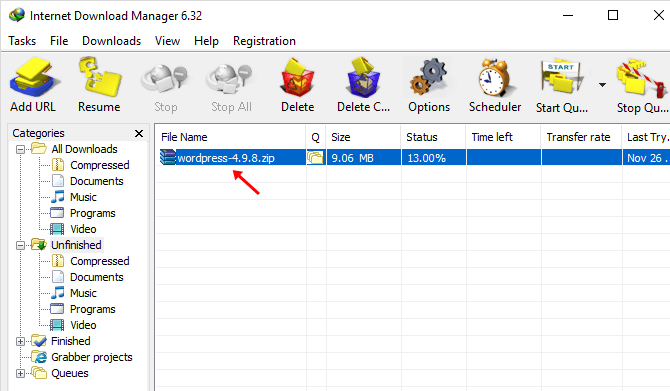
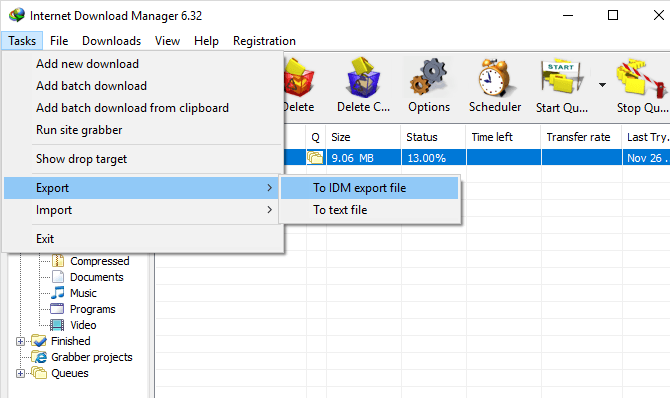
- Next, please select the Tasks menu > then select Export > then select To IDM export file.
- After that, select the Export selected files option > then click OK.
- Then, please select a storage location > then enter a file name > then click Save. The saved file will have the extension (*.ef2).
- Next, copy the file (*.ef2) to a flash disk or external hard disk.
- After that, please find your download folder in the following path:
C:\Users\user_name\AppData\Roaming\IDM\DwnlData\user_name. Please note that to be able to see the AppData folder and so on, you must set show hidden in attributes so that all hidden folders will be visible > then select the folder name related to your download > then copy the folder to your flash drive or external hard drive.
On Computer 2
- First, move the folder on your flash drive or external hard drive to the same path as before, namely C:\Users\user_name\AppData\Roaming\IDM\DwnlData\user_name.
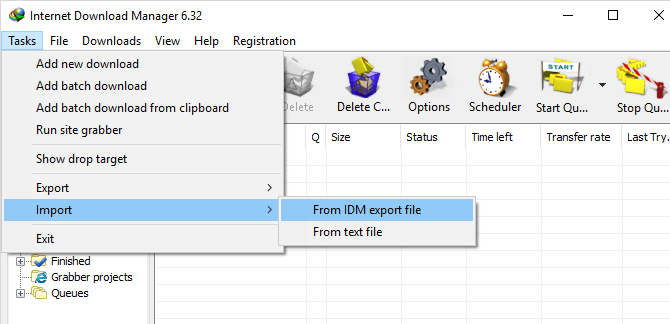
- Open the IDM application on computer 2 > then select the Tasks menu > then select Import > then select Form IDM export file.
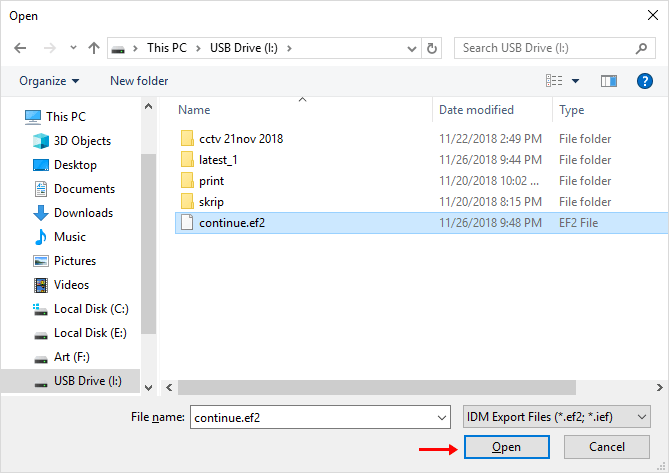
- After that, please select the file (*.ef2) on your flash disk or external hard disk > then click Open.
- Next, select or check the file > then click OK.
- Then, the file download process will be continued by IDM on another computer.
Isn't it easy to continue IDM downloads on another computer? Well, this IDM application is very useful for those of you who frequently download from the internet. Besides making the download process easier and faster, this application is also integrated with all types of browsers.
Even if your download is interrupted for some reason, you don't have to restart the download from the beginning. The features provided by Internet Download Manager, or IDM, really make it easy for users.
This concludes the article on how to continue IDM downloads on another computer. We hope this article was helpful. Keep visiting Nesabamedia for the latest interesting information. Good luck!